|
Scott Dunn From the September 2003 issue of PC World magazine Command and Control To make a batch file that always gives the same reply to this prompt, use the pipe symbol (|) to send a y (for yes) or n (for no) to the command on the same line. The full command would look something like this: echo y|chkdsk c: /f /x. Naturally, your drive designation and chosen switches may vary. And you should replace the y with an n if your answer is always no. To keep the command prompt window from closing after the program executes your batch file, add a final line consisting of a single word: pause. When you launch your batch file, the pause command will hold the command prompt window open so you can see any messages or spot problems. When you're satisfied that all is well, press any key to close the window.
If you want your batch file to check more than one disk, press Enter at the end of your first command line, and type another command that designates a different drive. Repeat these steps for each drive that you want your batch file to check. Finally, choose File, Save As, navigate to the folder where you store your batch files (or to the Windows folder), and give the file a name like "checker.bat" (be sure to include the quotation marks so your text editor won't add its default .txt extension). To launch the disk-check command from the Start menu, locate and select the batch file in Explorer. Use the right-mouse button to drag the file to the Start button, and pause until the menu appears. Drag the file to the submenu of your choice. When the file is over the desired spot, release the mouse button and choose Create Shortcut(s) Here. From now on, when you want to check your disks for errors, just choose your new command from the menu. The scheduled approach: Now that you've created a batch file for checking your disks, automating the process is simple. Choose Start, Programs (All Programs in XP), Accessories, System Tools, Scheduled Tasks. Double-click the Add Scheduled Task icon. Click Next in the Scheduled Task Wizard dialog box, and then click the Browse button to locate your batch file. Select the file and click Open. Follow the remaining prompts in the Scheduled Task Wizard to make the disk checking occur when you want it to. |
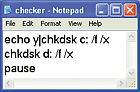 After formulating your command line, test it in a command prompt window. Choose Start, Programs (All Programs in XP), Accessories, Command Prompt to open such a window. This is also a good place to learn about additional Chkdsk switches: Type chkdsk /? and press Enter to get the full scoop. Add the switches and commands you prefer to the command line (above the word pause).